This is a guide only, if you need further help, please enlist the help of an IT professional who is trained in different devices and email clients.
Last test May 2023
POP Settings
Incoming Mail Server Settings:
Server Name: mail.cms-tool.net
Port: 110
Connection Security: SSL/TLS
Authentication Method: Normal
Outgoing Mail Server settings:
Server Name: smtp.cms-tool.net
Port: 587
Connection Security: STARTTLS
Authentication Method: Normal
IMAP Settings
Incoming Mail Server Settings:
Server Name: mail.cms-tool.net
Port: 993
Connection Security: SSL/TLS
Authentication Method: Normal password
Outgoing Mail Server settings:
Server Name: smtp.cms-tool.net
Port 587
Connection Security: STARTTLS
Authentication Method: Normal password
Setting up the mailbox in Thunderbird
Screenshots as at Dec 2023
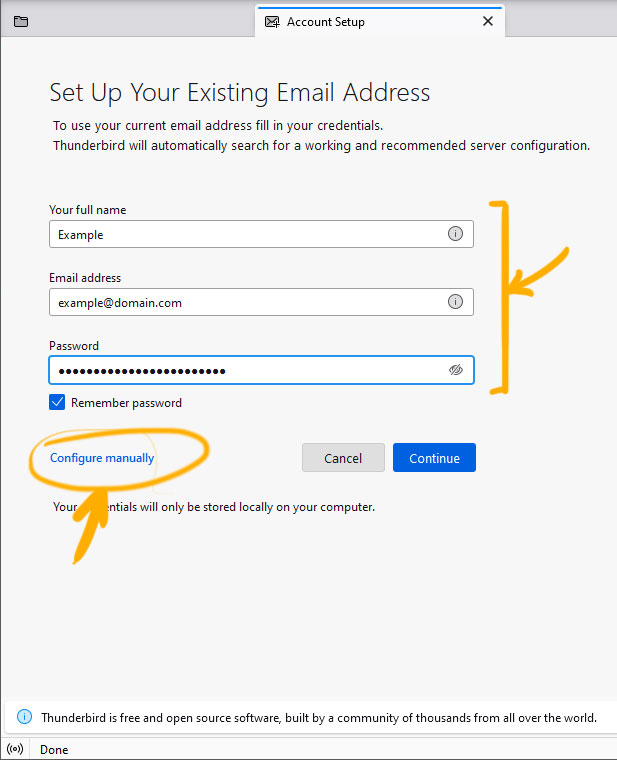
1. Add Details, then Configure Manually
Enter your name, email address and password as set in the Mailbox setup instructions and click the CONFIGURE MANUALLY button.
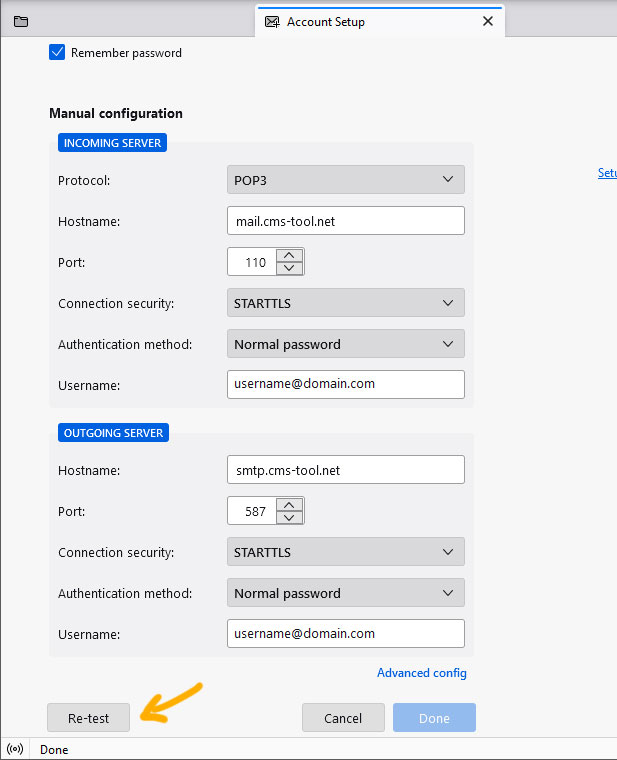
2. Update Incoming and Outgoing, then Re-test
POP3 Enter the details as shown above, replacing what thunderbird auto-detected. E.g. incoming mail server, outgoing, undername etc, then click the Re-test button.
If using IMAP, change the protocol option and apply the settings shown at the top of this page.
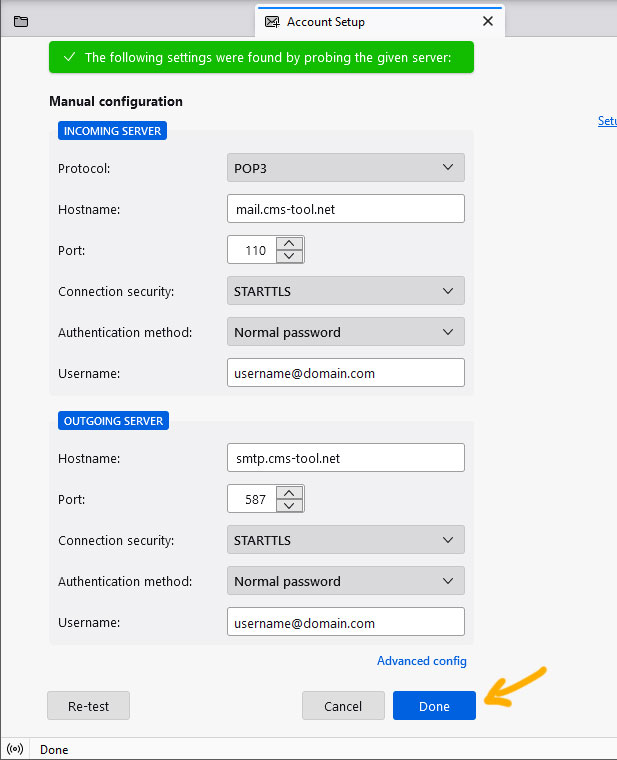
3. Click the DONE button to complete setup
Once the test is complete you should be able to click the DONE button to start using your email.
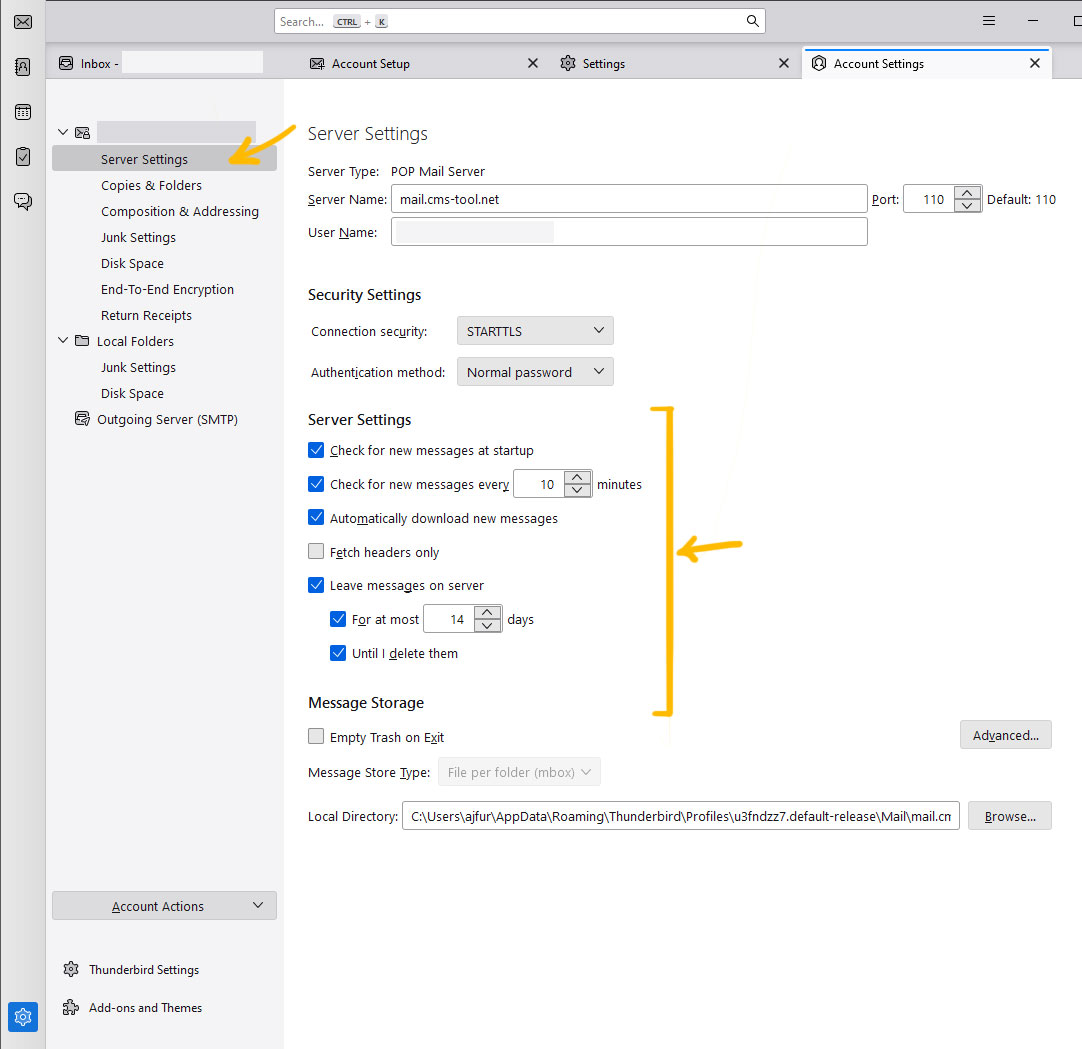
Updating what happens with email downloaded (POP Email settings)
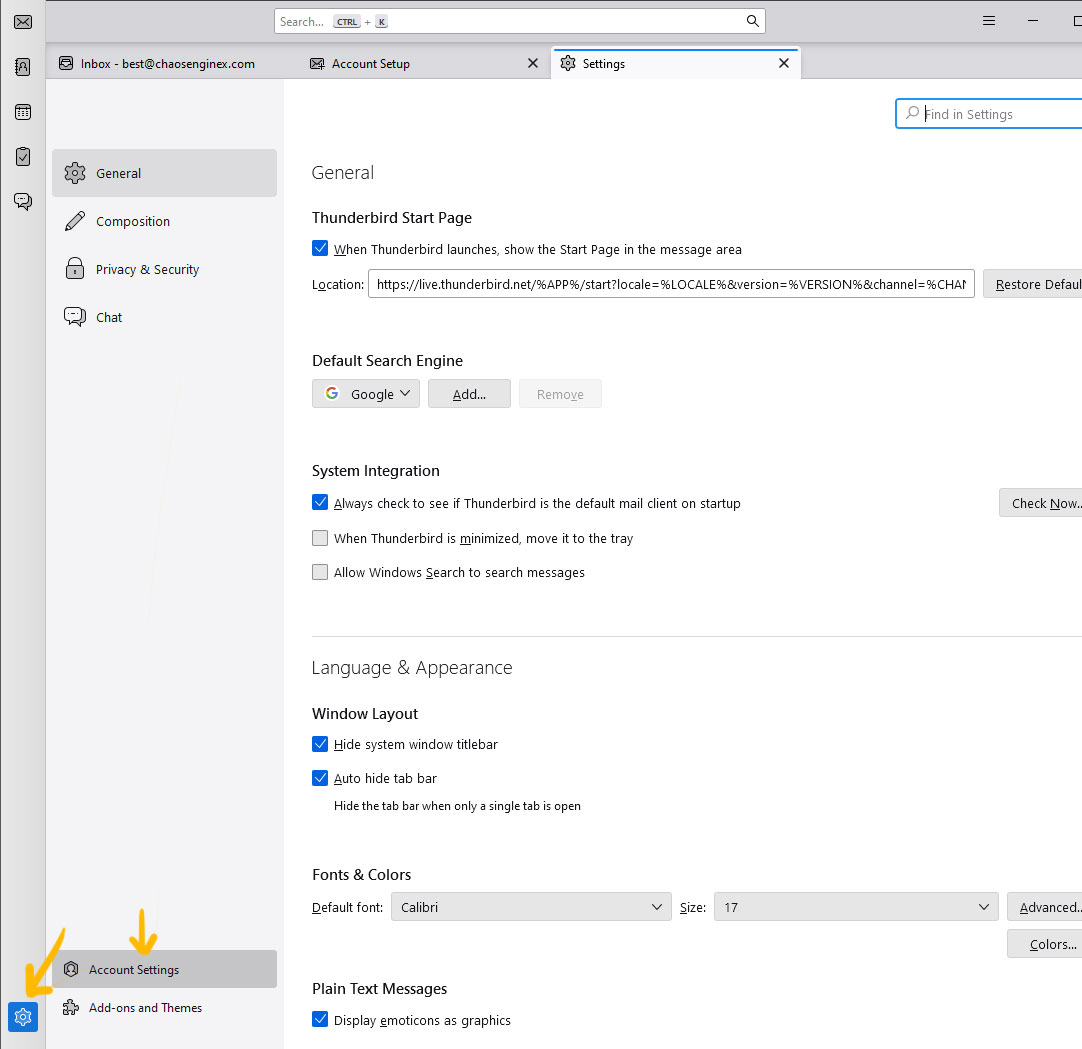
1. Click the Settings cog, then Account Settings
Click the Settings cog bottom left of the email application, then click Account Settings.
2. Update Server settings as needed.
You can then make changes as to what happens with email on the server.