
Please note, email passwords are assigned to each mailbox. These are different to the CMS login password.
1. Login to the CMS and click Domains & Mail button
2. Click the Email (envelope) button next to the relevant domain

3. On the next page with the email addresses listed find the relevant pop email account, and click Mailbox Setup Instructions/Change Password

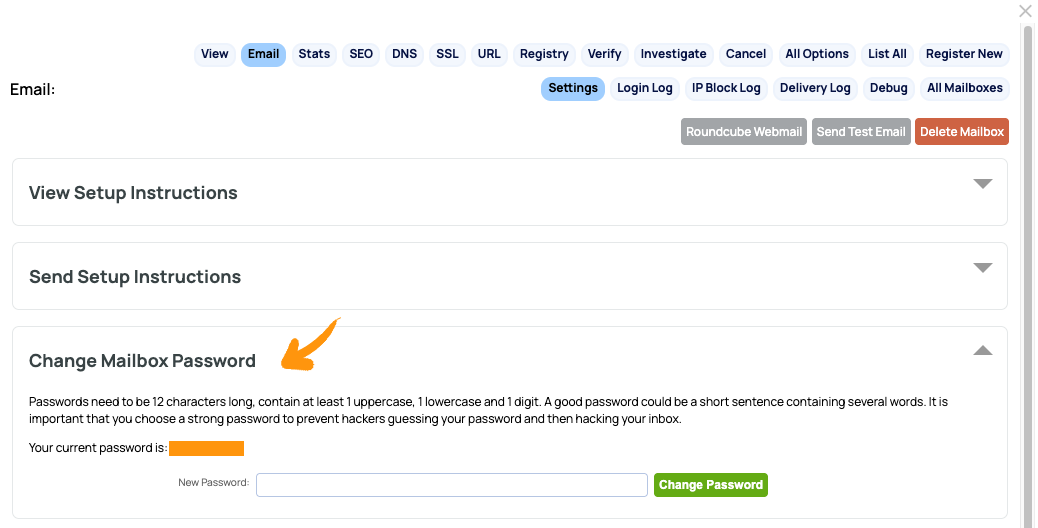
4. On this page with the setup instructions, there is a series of closed sections stacked vertically.
- Click CHANGE MAILBOX PASSWORD to open the section.
- This will reveal an option to change your password as per the screenshot below:
5. Update the password and click the Change Password button
6. You'll then need to update the password stored in your email client to match
7. Allow at least 5 mins for the mail server to update the password (If the password doesn't work straight away)