
Either click here to edit or replace this text with your own, or delete the block from the options on the left, or drag sample content layouts from the right, then replace those images/videos with your own.
If you don't like this editor mode, you can select other editor modes from the top right where it says Drag & Drop. TinyMCE3.5.10 is the old editor mode, good for tablular based formatting.
Adding a new table
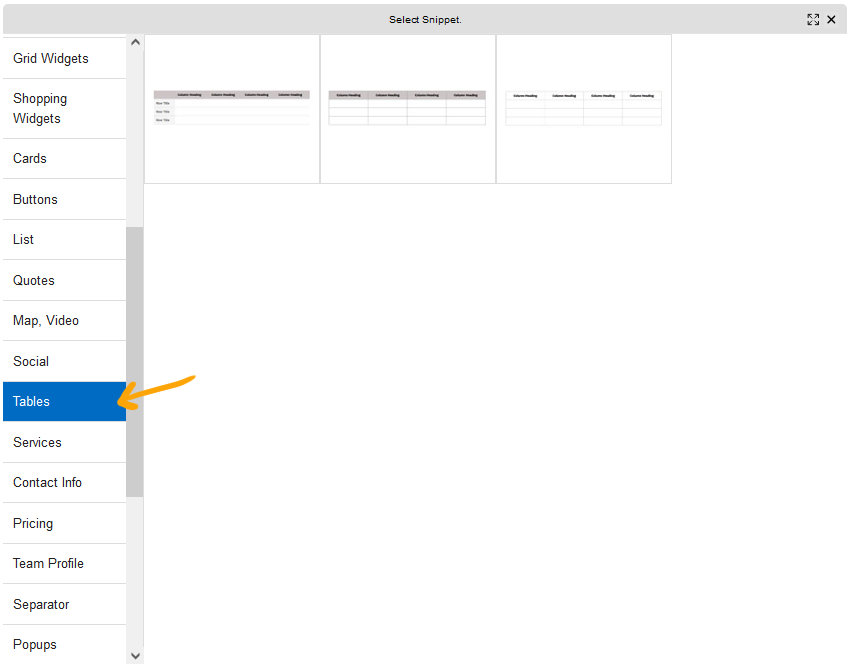
You can add a new table snippet block via the drag-drop sidebar column, or via the ADD SNIPPET BLOCK button when hovering over content.
The snippets are located in the TABLES section.
Formatting a table
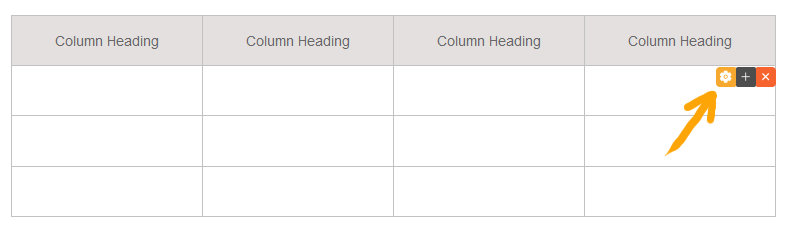
To edit a table via the drag-drop area, click into a table cell and click the YELLOW COG icon that comes up.
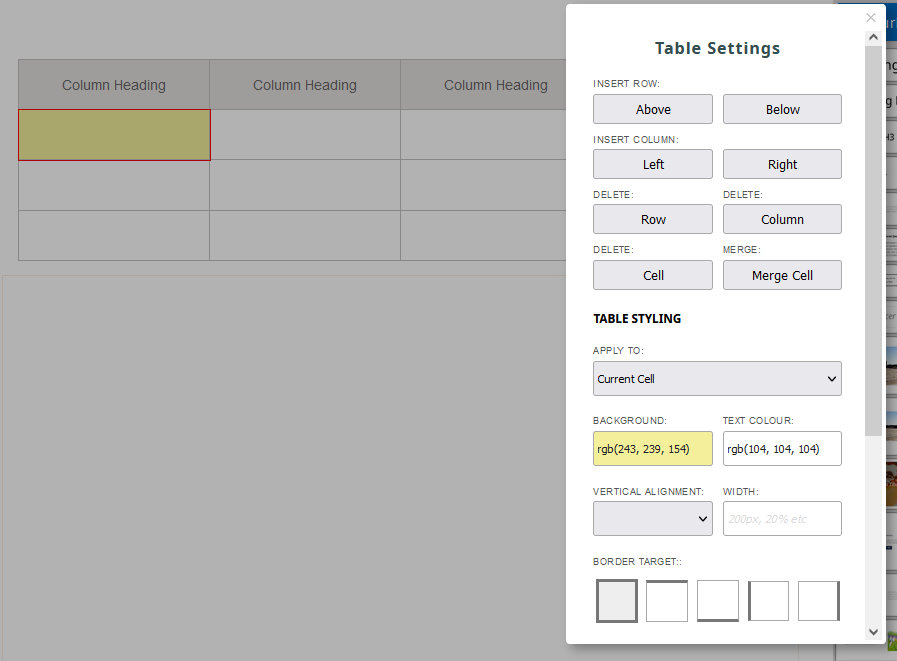
Any changes by default will be applied to the current active cell, but you can change to target the table or table row as well.
How do I add a new table column to a table using the drag and drop editor?
When editing a table, click into a cell on the table you wish to add a column to - this will show a toolbar to the top right of the table column.
- Launch the Table Editor popup by clicking the Yellow Cog Icon
- From the Table Editor popup that appears, Click the Insert Column Button - either left or right to insert a new column left or right.