
Switch your CMS dashboard between Light Mode and Dark Mode to suit your screen, your lighting and your own preference. Light Mode gives a brighter, high contrast display that many people find easier to read, while Dark Mode is gentler on the eyes in dim rooms.
The setting is found in your UI Settings and takes four quick steps. It changes the look of the CMS dashboard only, not your website. To change the theme of the POS, see Changing Between Dark & Light Mode POS.
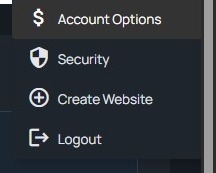
Step 1: Open Account Options
Under your name at the top right of the CMS, click Account Options.
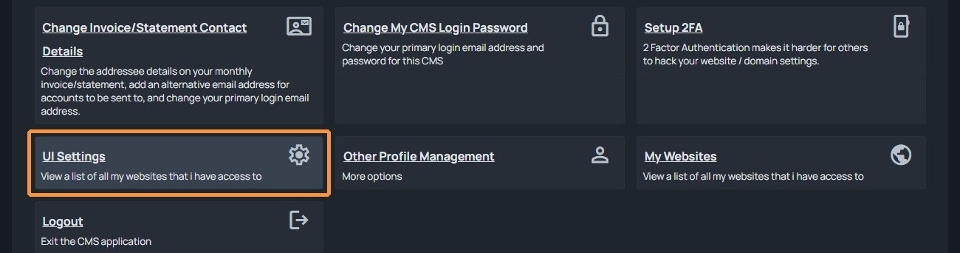
Step 2: Open UI Settings
On the Account Options page, click UI Settings.
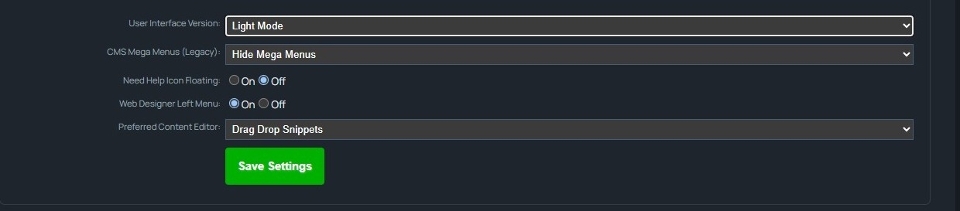
Step 3: Choose Light Mode or Dark Mode
Under User Interface Version, select the Light Mode or Dark Mode option.
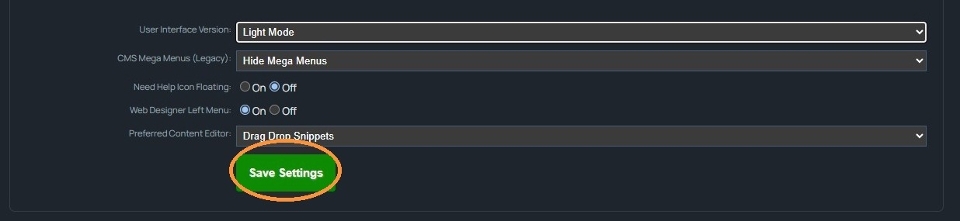
Step 4: Save your settings
Click the green Save Settings button to apply your choice.
Tips
- To switch back, follow the same steps and select the other option under User Interface Version.
- Other options on the UI Settings page, such as CMS Mega Menus, Need Help Icon Floating, Web Designer Left Menu and Preferred Content Editor, stay as they are unless you change them.