
Switch your POS between Light Mode and Dark Mode to suit your screen, your lighting and your own preference. Dark Mode is easier on the eyes in dimly lit venues, while Light Mode gives a bright, high contrast display in well lit shops.
The theme is set from the UI Theme option in POS Settings. Follow the steps below to change it.
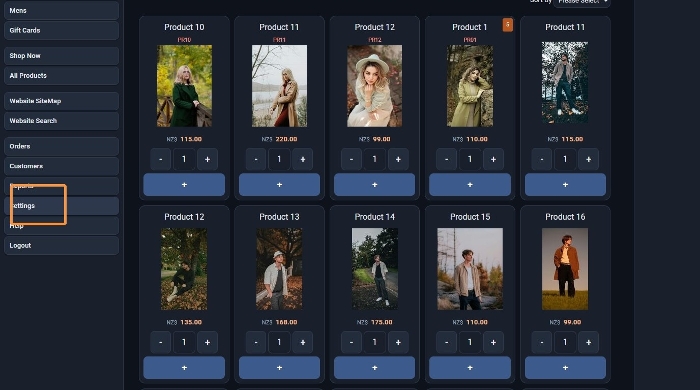
Step 1: Open POS Settings
Launch the POS from the E-Commerce area, then click Settings in the menu on the left.
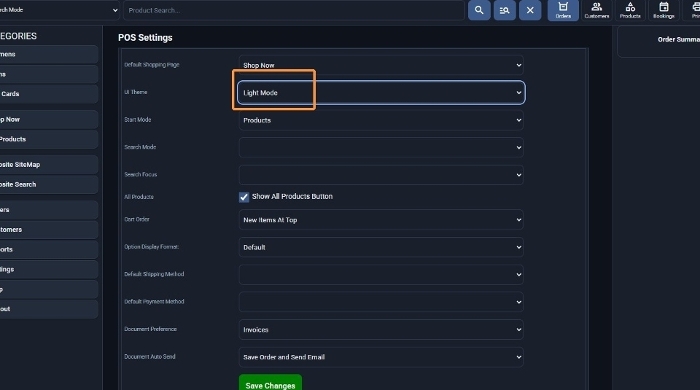
Step 2: Choose Light Mode
On the POS Settings page, find the UI Theme drop down and select Light Mode.
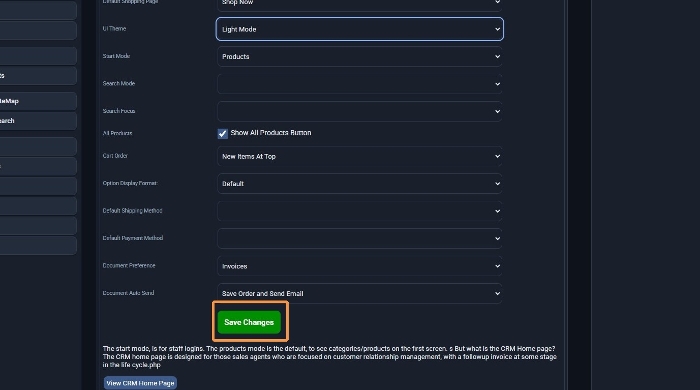
Step 3: Save Light Mode
Scroll to the bottom of the page and click the green Save Changes button to apply Light Mode.
Switch to Dark Mode
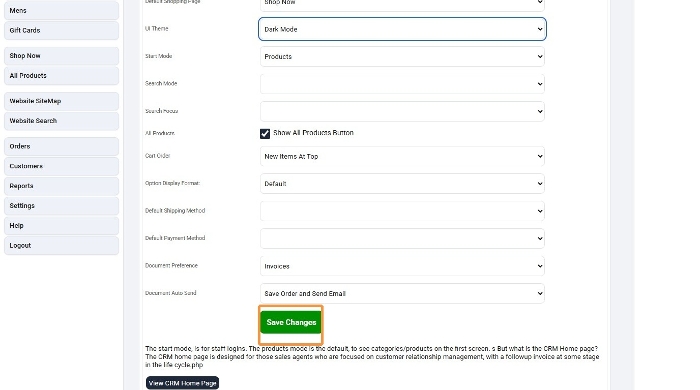
To change back, open Settings again, click the UI Theme drop down and select Dark Mode.
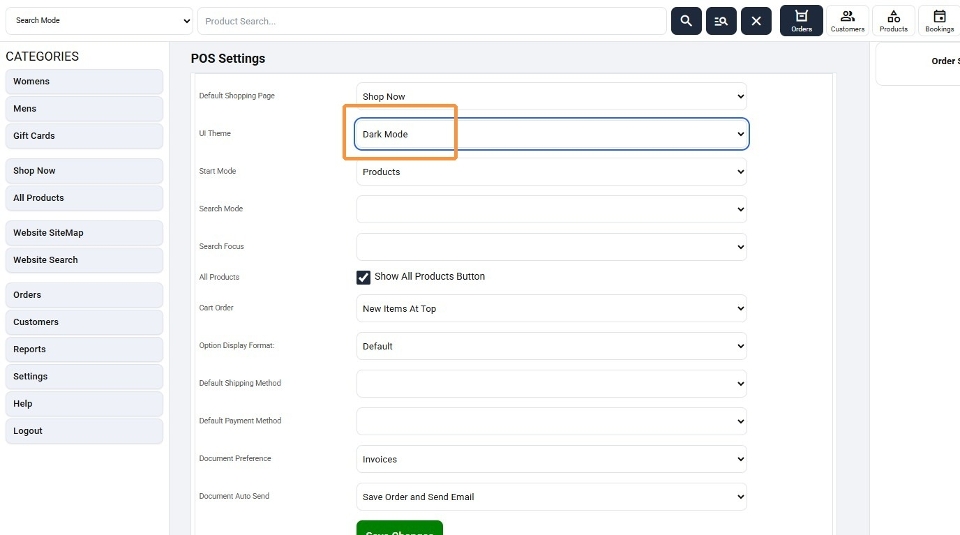
Click the green Save Changes button to apply Dark Mode.
Tips
- Your theme will not change until you click Save Changes.
- Other POS settings on this page, such as Start Mode, Cart Order and Document Preference, stay as they are unless you change them.
For the other options on this page, see the POS Settings help entry.