You can copy a Contentbox section and paste into a new page via the Contentbox settings modal.
To copy a section
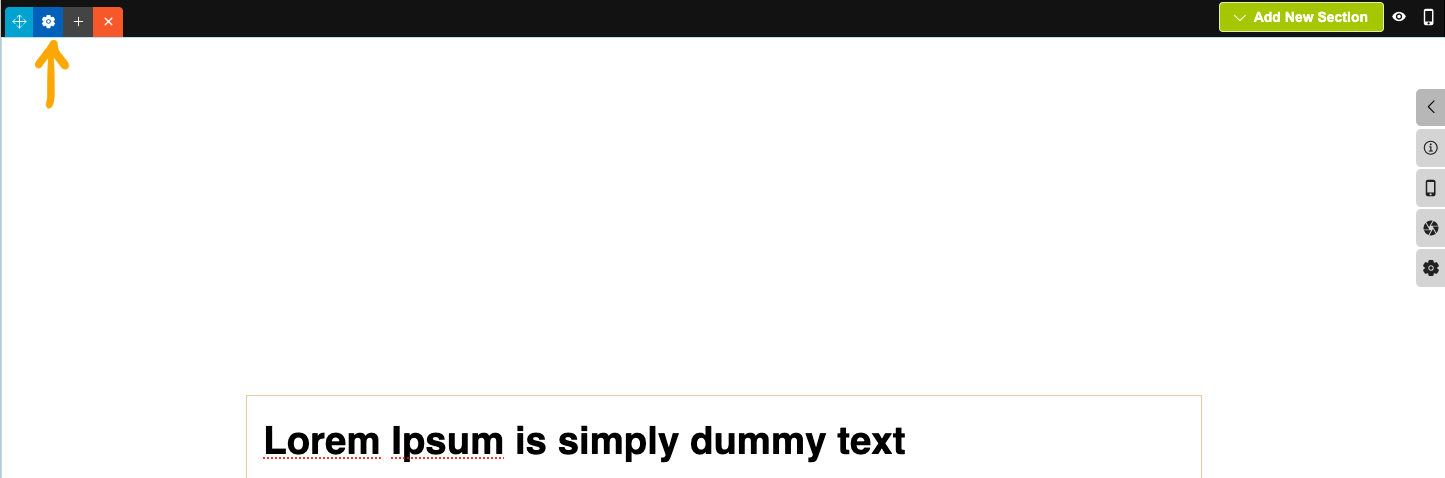
- Click the BLUE COG icon top left of the section
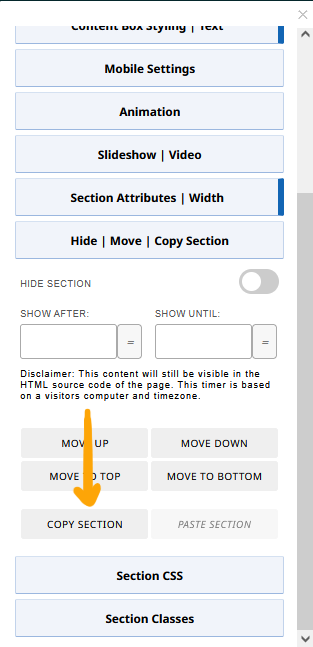
- From the Contentbox settings modal that appears, click the HIDE | MOVE | COPY SECTION button to open the settings.
- Click COPY SECTION.
To paste a section
- Navigate to the relevant Page / Content Area
- If the editor used is not the Contentbox Editor you should change to it via the CHANGE EDITOR MODE dropdown top-right.
- Click the BLUE COG icon top left of the section above where you want the section to be pasted
- From the Contentbox settings modal that appears, click the HIDE | MOVE | COPY SECTION button to open the settings.
- Click PASTE SECTION.
- If you changed editor mode to Contentbox, you will have the default section still showing, you can delete this via the ORANGE X button at the top of the section.
- Save your changes.