
Important: Courier integrations will only work if your website is live.
Includes pricing for PostHaste, Castle Parcels, NZ Post, Now Couriers, Aramex, Kiwi Express, Goddards, TNT, SF Express, DHL, Asendia, FedEx Express.
Available as two options: Live pricing or Consignment Label only.
Consignment Label Integration
Follow the below steps to configure courier fulfilment integration.
1. Signup with Zappy
In the CMS:
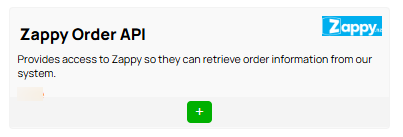
2. Go to E-commerce tab.3. Scroll down to the plugin section and find the Zappy plugin.
4. Add the plug in by pressing the + button.
- Go to Settings.
- Go to E-Commerce/3rd Party Integrations
- Choose Website builder
- Enter the API credentials from the CMS into their configuration screen
- Authenticate
Notes:
- Your WebsiteID should be in the Zappy StoreID
- The API Key/Password in the Zappy Oauth Token.
- Complete the other fields within the Zappy form and then Save.
Ticket info Update:
- If you choose 'No', Zappy won't update your CMS orders, you have to change the order manually.
- If you choose 'Yes', Zappy will update fulfillment of your CMS order.

Live Pricing
Zappy API Integration Instructions
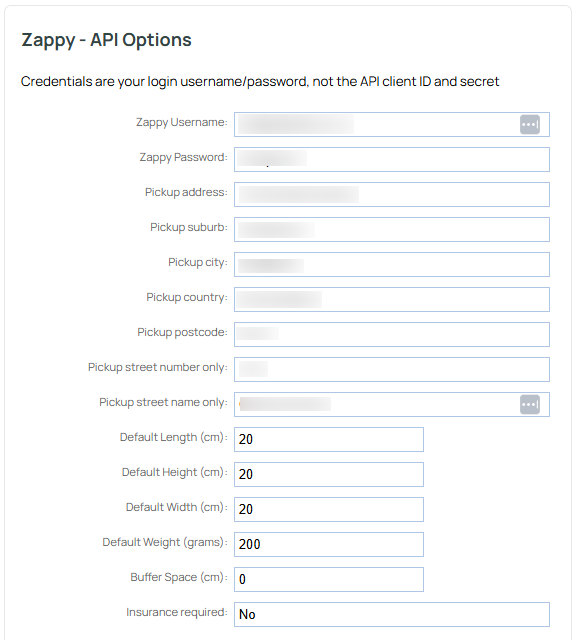
To setup Live Pricing you will require your Zappy login username and password, pickup address details, and some generic product dimensions.
The set up for this is in the CMS.
- Go to e-commerce > Freight
- Scroll down to the live pricing integrations section - this is different to the consignment label area.
- Select Zappy.
Live pricing is not available on the lower hosting plan - if you do not see the live pricing options, you may need to upgrade your hosting plan to access the live pricing API.
- Your username and password are the ones you use to sign into your Zappy dashboard.
- Enter the address that your courier will normally pick up from - usually your business.
- Enter some fallback dimensions and weight - these are used if a product should have missing weights/dimensions.
- Buffer space if the amount of space around the product once packed. You might allow for some, or you may not.
- Specify if insurance is required by default.
How to find my orders in Zappy:
Choose Domestic or International in the top bar to start a consignment
Press the Orders button in Step 2 as below screenshot.
Your orders should be listed in the next screen, depending on how you have those filters set.


Other Options
Within the CMS Zappy plugin there are two other options you can change:
1) The Status Filter
Choose which orders flow to Zappy:
- No override of API filters
- Paid or ready to ship status
- All unshipped orders
- All closed orders
2) Notification override of courier settings:
- Default as per API parameters
- Force notification email on courier update
- No notification email on courier update.