
Give other people access to your website, in a full or limited way. This can include staff users, so their activity is tracked, independent SEO people, or staff POS users.
- Additional Administrators of sites are not allowed to see the account history of the "owner." They also can't change the owners password, nor touch the owners other websites.
- Administrators can see the balance owing and can top up the owners account balance.
- Administrators can edit content of sites they are permitted too.
- Invoices will be emailed to the site owner and 1 additional email address for the accounts dept, but that additional email address can't edit site.
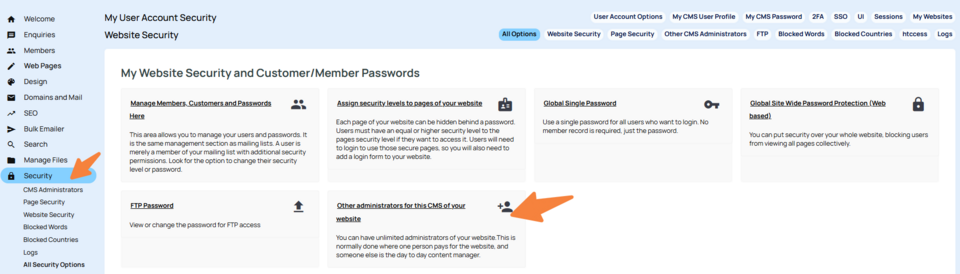
How to add a new administrator for a website
- First edit the target website (if you have more than one website, the administrator only gets access to 1 website at a time. )
- Go to the Security tab, as per the screenshot above.
- Go to Other Administrators for this CMS of your website
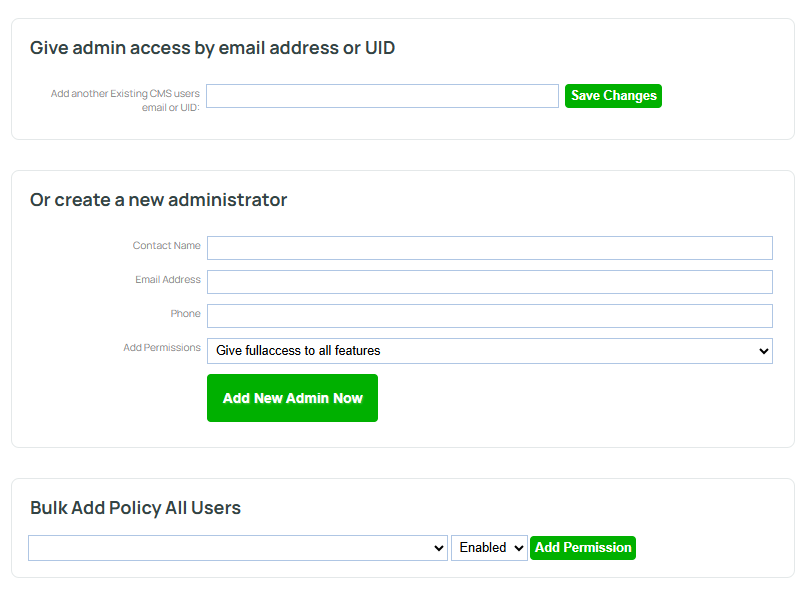
- Add the user name and email, and specify any limitations on what they will have access to.
- Press Add New Admin Now.
- In the next screen, send either the CMS password or the POS password as needed.
- You can further refine their access to either add or take away a specific privilege, such as preventing sales reps from editing customers, or seeing data they are not entitled to see.
Administrator permissions: what each one controls
On the Security for Administrators and Staff page you can add extra people (staff, web designers, SEO helpers) to your website’s CMS and Point of Sale (POS). Each person can be given full access, or only the areas you choose.
How to add a permission
- Pick an option from the drop down box. The options below are listed in the same order and wording as the drop down box.
- Choose Enabled or Denied in the box beside it.
- Press Add Permission.
How access works
- Full access (All Features): If you choose “Give full access to all features” when you add someone, they can use every area below except your Accounts and Hosting Plan.
- No permissions added: If you add someone and don’t set any permissions, they can use everything. Restrictions only start once you add at least one specific permission.
- Only some areas: Once you add specific permissions to a person, they can use only the areas set to Enabled. Anything not enabled is hidden or blocked.
- Denied doesn’t work on top of All Features: If a person has All Features enabled, a Denied row for another option is overridden for most options, so the person keeps access. To restrict someone, remove All Features and enable only the areas they need, rather than combining All Features with Denied rows.
- Blocked pages: If someone opens an area they don’t have, they see a “Security Block” page with a link back to the dashboard.
- The website owner always has full access. Don’t add the owner’s own login to this list, because doing that restricts the owner.
Options in the drop down box
| Option in the drop down box | What it lets the person do |
| All Features (all) | Use every area below except Accounts and Hosting Plan. |
| POS Point of Sale (pos) | Use the Point of Sale system. |
| Products (Edit) (products) | Add and edit products, bulk updates, product imports, product features and purchasing. |
| Customers / Member Data (members) | View and edit customers and members in the member database, including from POS. |
| Event and Attendee Management (events) | Create and edit events, and use the Events tab in POS. |
| Bookings Management (bookings) | Manage bookings, including the Bookings tab in POS. |
| SEO (seo) | Manage the SEO settings and the website’s languages and translations. |
| Reports (reports) | View sales and ecommerce reports, member reports and the reports area, take website backups, and see reports in POS. |
| Edit Content (content) | Edit page content in the page editor. |
| Email/Newsletters (bulkemail) | Use the bulk emailer to send newsletters to members. |
| Domain name management and DNS (domains) | Manage domain names, DNS and domain security. |
| Design (design) | Change the website’s design, look and layout settings. |
| Accounts and Hosting Plan (accounts) | See the website’s invoices, billing and cancellation pages. Other administrators don’t see this unless it is given to them. |
| Manage Security (security) | Open this Security area: add and remove administrators and change what they can access. Only give this to people you trust completely. |
| File write permission and FTP access (files) | Use the file manager (web FTP) and PHP hosting files. |
| Order Management (orders) | View and manage online orders and the full order history. |
| Forum Management and Review Management (forums, reviews) | Manage forums, chat and reviews. These two options are linked. The system treats forums as an old name for reviews, so allowing either one can open the other’s area in some places. Set them together. |
| Enquiries (enquiries) | View and reply to enquiries and form submissions. |
| Configuration, Setup (configuration) | Change the website and shop settings: payment gateways (such as Stripe), vouchers, shop plugins (such as loyalty), integrations (such as Xero), event settings and page options. |
| Image editing (images) | Use the image wizard. |
| Directory Management (directory) | Manage directory listings and their classifications. |
Special POS and sales rep options
These are the last three options in the drop down box. They are usually used to limit staff or sales reps by setting them to Denied. As explained above, Denied is overridden by All Features for most options, so use these on people who do not have All Features enabled:
| Option in the drop down box | What it does |
| User can view all customers and orders not specifically linked to them (canviewallcustomers) | If denied, the person sees only the customers, orders and bookings where they are the sales rep. This applies in POS, the customer search and order lists. |
| Edit customer pricing rules or security level (customersavepricingrules) | If denied, the person can’t change a customer’s pricing or security settings on the member record. |
| POS Custom Discounts (poscandiscount) | If denied, the “Discounts” (override discount) button is hidden in POS. |
Good to know
- Staff you add here can use POS automatically, unless you restrict them.
- Administrators can’t see your invoice history, but they can see their own.
- Administrators can still do things that create invoices or change your hosting fees, such as buying a domain.
- If you only want someone to edit certain pages, use Page Admins instead. They log in on your website, not in this CMS.
Make an Admin to Website Owner
Please contact support to have this change made for you. They will assign the site owner to the accunt UID of the new user. Hosting account financial history does not transfer between users.