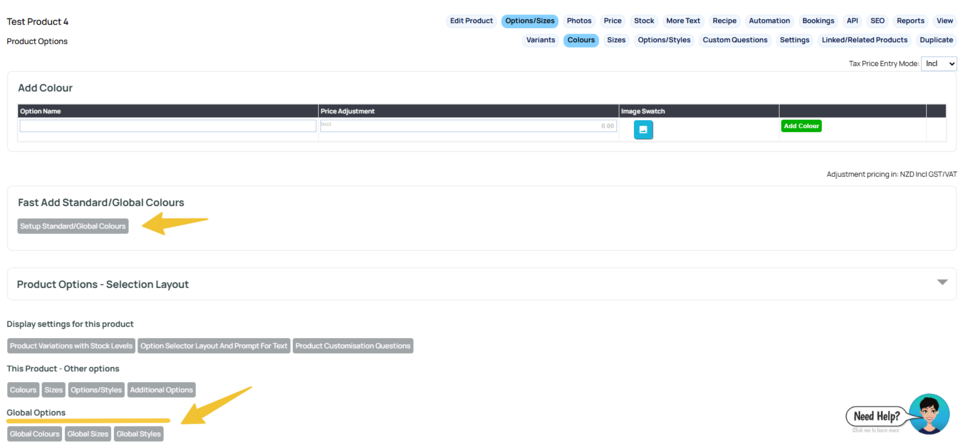
Global options allow you to define colours, sizes and options as reusable options that can be applied to any product. You can centrally manage images, pricing, or removal of those colours/sizes/styles and then apply them across products or categories in bulk.
- Define global colours/sizds/style first, before assigning them to many products which makes future edits simpler.
- Use bulk tools sparingly but smartly, so you don’t accidentally remove or overwrite global colours/sizes/styles from many products.
- Preview changes before confirming bulk updates, especially when editing images or pricing.
- Consistent naming and images help avoid confusion when applying global colours across a catalogue.
Adding / removing the Global Options in bulk - via E-commerce settings
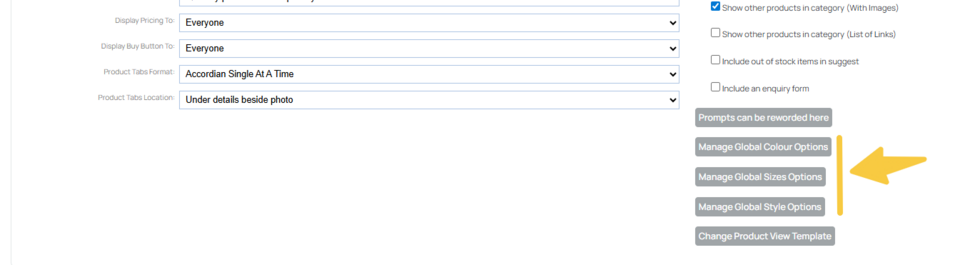
You can setup your options or choose to add or remove a Global Option for all products in a specified category in bulk when not editing a product, via E-Commerce > Product View Options button.
In the “View Product Page Options” screen, on the right side, there are buttons for each global option (e.g. global sizes, global colours, global styles).
Click these to bulk add or remove global colours and add to or delete from all products in a selected category.
Quickly adding Global Options to a product
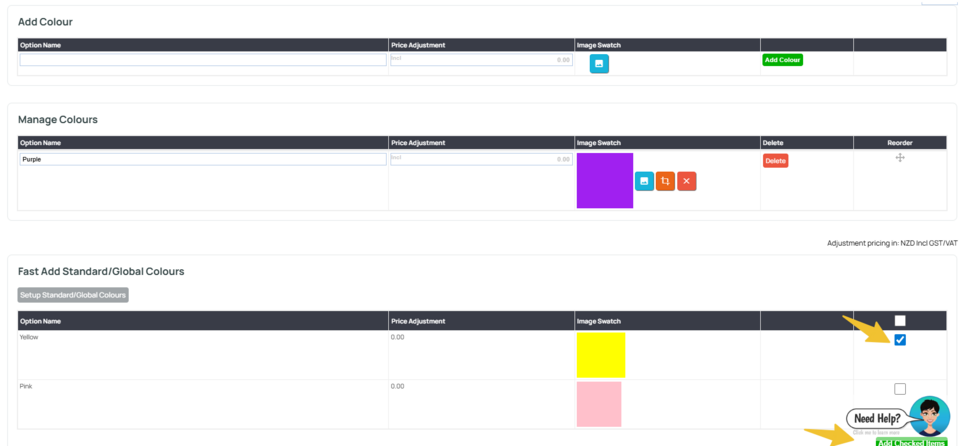
Once you have added your Global options e.g. colours, these can be applied to any product via the Manage Colours area.
Global colours will be shown in the Manage Colours area under the current colours. You can check the required options and apply as below.
Making Changes to your Global Option
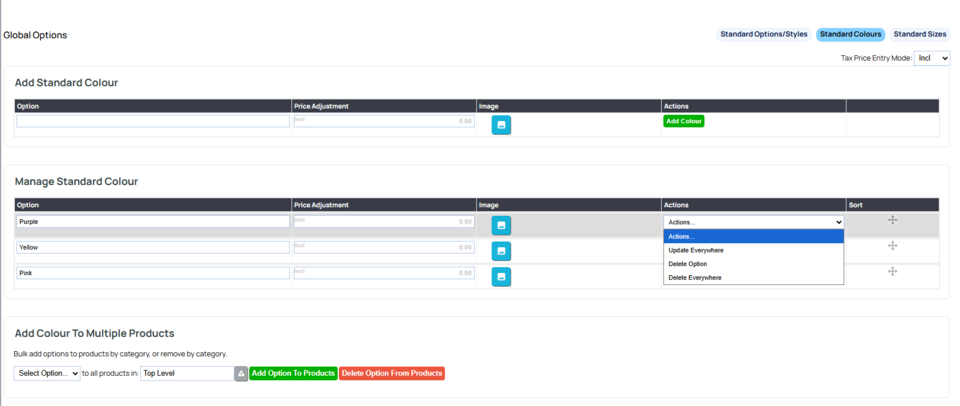
Once added you can edit the global option to update the product image or price, or delete it from everywhere it is used.
Adding / removing the Global Options in bulk per category
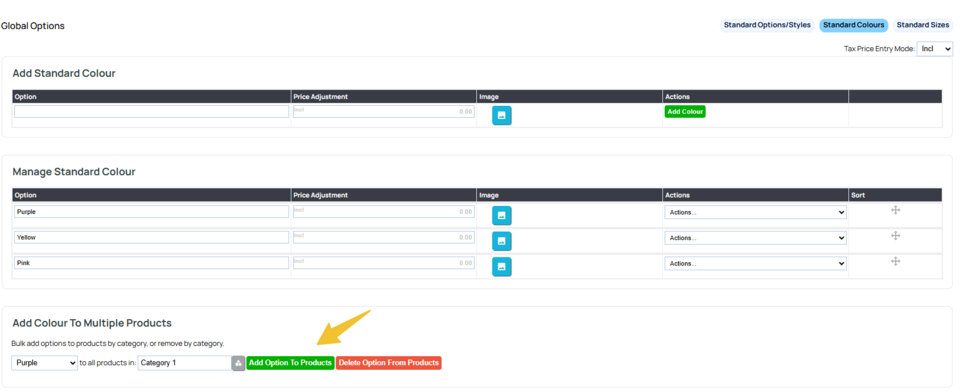
When setting up your Global Colours / Options you can also choose to add or remove a Global Option to all products in a specified category in bulk using the Add [option] To Multiple Products area on the page.
Where to set Global Colour Options when editing a product
Go to add a Simple Product Option using the MANAGE SIZES, MANAGE COLOURS, MANAGE OPTIONS buttons in the OPTIONS/SIZES area.
Instead of adding an option, click the Global Options buttons available (see screenshot below)