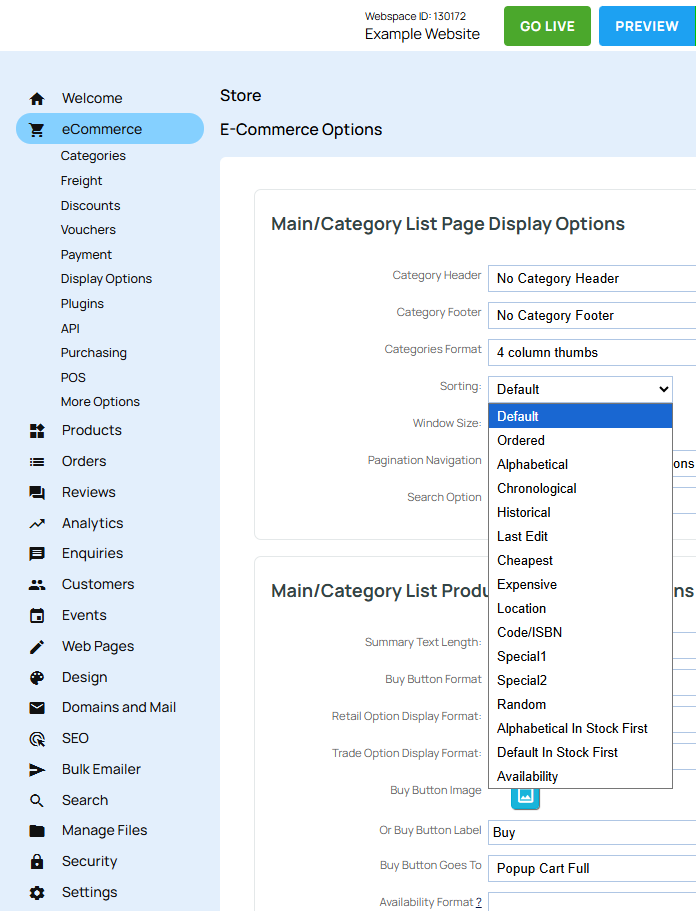
You can control the order your products appear in on your store. You can arrange them by hand using drag and drop, or let the system order them automatically by a rule such as alphabetical or price.
Arrange products manually
When Sorting is set to Ordered, you can drag and drop your products into any order you like.
Click the bottom right edge of the product box an drag the product to its new position and drop it in place. This is also the default behaviour, so unless you have changed the setting, you can already arrange your products this way.
Let the system order products for you
If you choose any other Sorting option, such as Alphabetical, Cheapest or Expensive, the system orders your products automatically using that setting. New products slot into the right position without any extra work from you.
Set a different order for a single category
The Sorting setting applies across your store, but you can override it for individual categories. Open the category's settings and choose the ordering you want for that category only. This is handy if most of your categories are ordered automatically but one needs a hand picked order.
Choose how your products are ordered
1. In the main menu, select eCommerce, then select Display Options.
2. Under Main/Category List Page Display Options, find the Sorting dropdown.
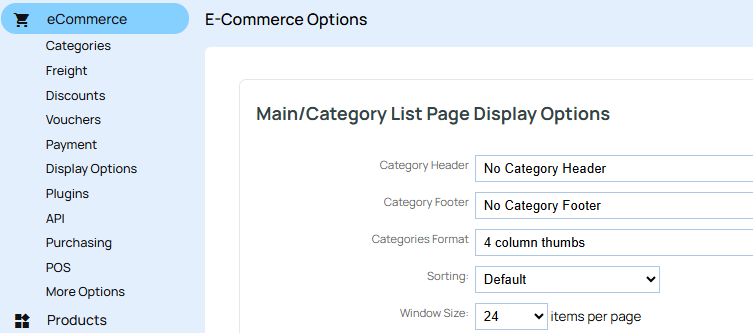
3. Open the Sorting dropdown and choose the option you want.
4. Select Publish to make the change live on your website.
Heading 3 - Use H text icon to change heading size