
There are two approaches for managing banners - the default banner slider and the Contentbox banner slider.
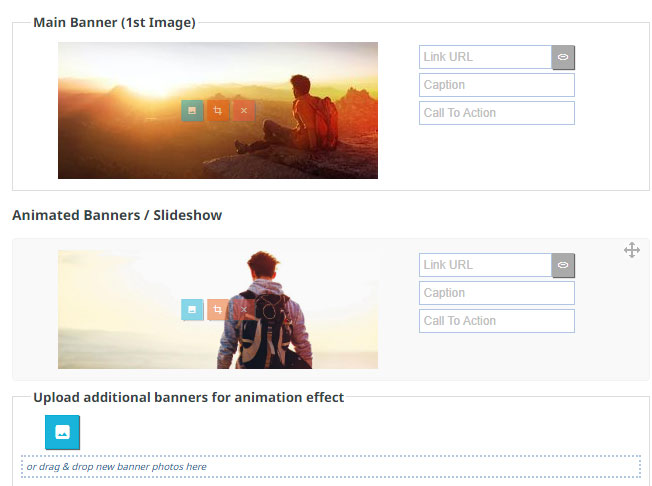
The default banner slider
- The default banner slider allows you to add images easily to your default banner area.
- Images are cropped to size and stretched to fit the available width.
- Images decide the height of the banner.
- Cropping images to the same size / shape gives the best result.
- Images can be linked to pages in the site.
- There are basic caption options available.
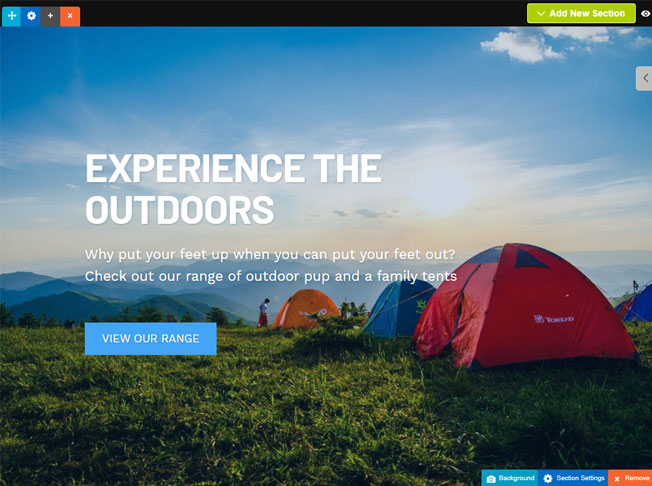
The Contentbox banner slider
- Uses Contentbox to manage the images and captions.
- Images are scaled in the backround and stretched to fit the available width and height.
- Contentbox decides the height of the banner.
- Cropping images is not needed to get the best result.
- Images and caption text can be linked to pages in the site.
- Use can use the full features of Contentbox to style the slider.

How to enable / disable the Contentbox banner
On the banner page, scroll down below the Animated Banner Effects section to the Alternative Snippet/Box Banner area and click the EDIT BANNER USING CONTENTBOX button.
If you decide not to use Contentbox you can click the REMOVE ALTERNATE BANNER button that appears.