
On this page:
1. Repeat Order Service
2. Repeat Order Service with Automatic Payments/Token Billing
3. Setting Up Repeat Orders
4. Editing or Cancelling Repeat Orders
5. Viewing All Subscriptions
6. Restarting a Subscription
7. Forcing a Payment (Failed Orders)
⚠️ Important: Never delete open carts if subscriptions are active - this may delete the next order in the sequence.
1. Repeat Order Service
- Also known as Standing Orders.
- The customer chooses the repeat interval (e.g., weekly, monthly).
- The system automatically creates a draft order after the initial order is submitted.
- On the repeat date:
- The draft order is submitted.
- A new draft order is created for the next cycle.
Benefits
- Ideal for food deliveries, retail restocking, or regular household orders.
- Customers can cancel or change their order at any time before submission.
- Each repeat order generates an invoice with normal payment options.
- Orders remain “unpaid” until confirmed in your CMS dashboard or accounting system (e.g., Xero).
2. Repeat Order Service with Automatic Payments/Token Billing
A few payment gateways allow automatic charges to a saved card. Examples: WindCave and Pin Payments.
On each repeat date:
- The current order is closed.
- A new draft order is started.
- If the payment method supports token billing, the card is charged automatically.
3. Setting Up Repeat Orders
- Go to E-Commerce > Plugins and Add the subscription plugin.
- Then press configure Subscription Settings:
| Enable Repeat Orders | Choose which customer / member level can repeat the order |
| Repeat Order Position | Where the order settings appear in checkout |
| Repeat Order DOW | Allow the option to specify the day of the week the repeat order is sent |
| Repeat Order Frequencies | Set the choices for how often an order can be repeated |
| Do not allow one off orders |
Require that customers must repeat the orders to avoid gaming the system for a cheaper order. |
4. Editing or Cancelling Repeat Orders
Customer (Front-End)
Can log in and from their dashboard:
- View Order History.
- Edit, Reschedule, or Cancel orders.
- Update card details.
- Cancel billing authority.
Site Administrators can revoke the Automated Billing option in the Members record, and edit orders either in the Members > Orders area or by logging in as a member.
Editing or Cancelling a repeat order - Customer Login view
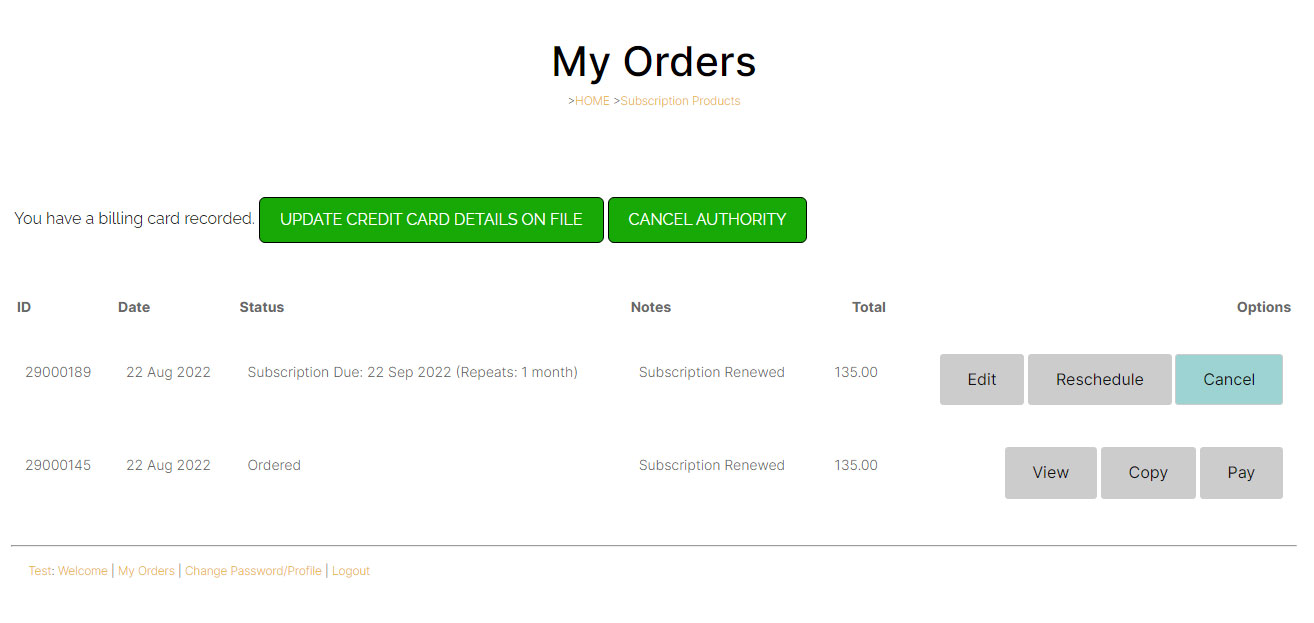
Above: Example customer login screen. A customer can view their order history including the next draft order.
They have the option to EDIT, RESCHEDULE, or CANCEL the order, and the ability to UPDATE their payment method or CANCEL the repeat billing authority.
Editing or Cancelling an order via the CMS - Site Administrator view
- Site Administrators can also log in as a member to make edits
- You can make changes to the order via the CMS by Viewing the Member, then viewing orders, and editing the latest draft order.
- When editing a subscription order, change the values as needed, but do not SUBMIT the order, as this will submit the repeat order prematurely.

Above: You can view a customers orders by finding the member record in the members area, then clicking the ORDERS tab.
This will give a list of completed and draft orders. The pending subscription order will be shown at the top of the list.
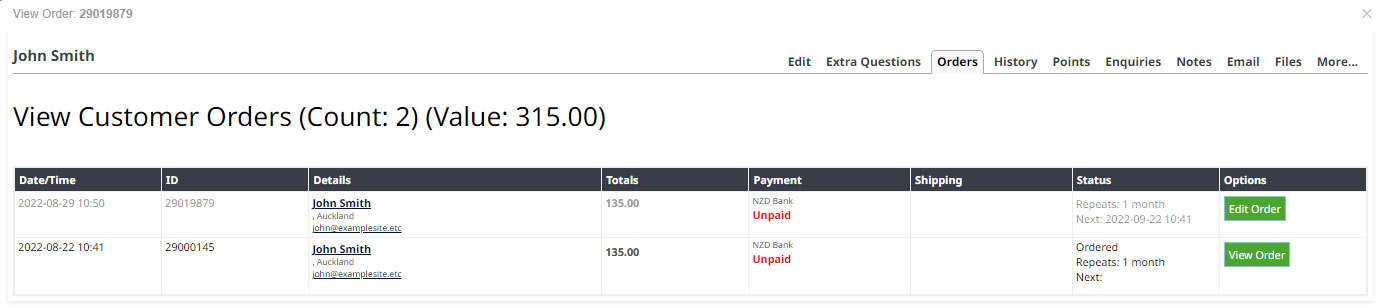
Above: Example order list.
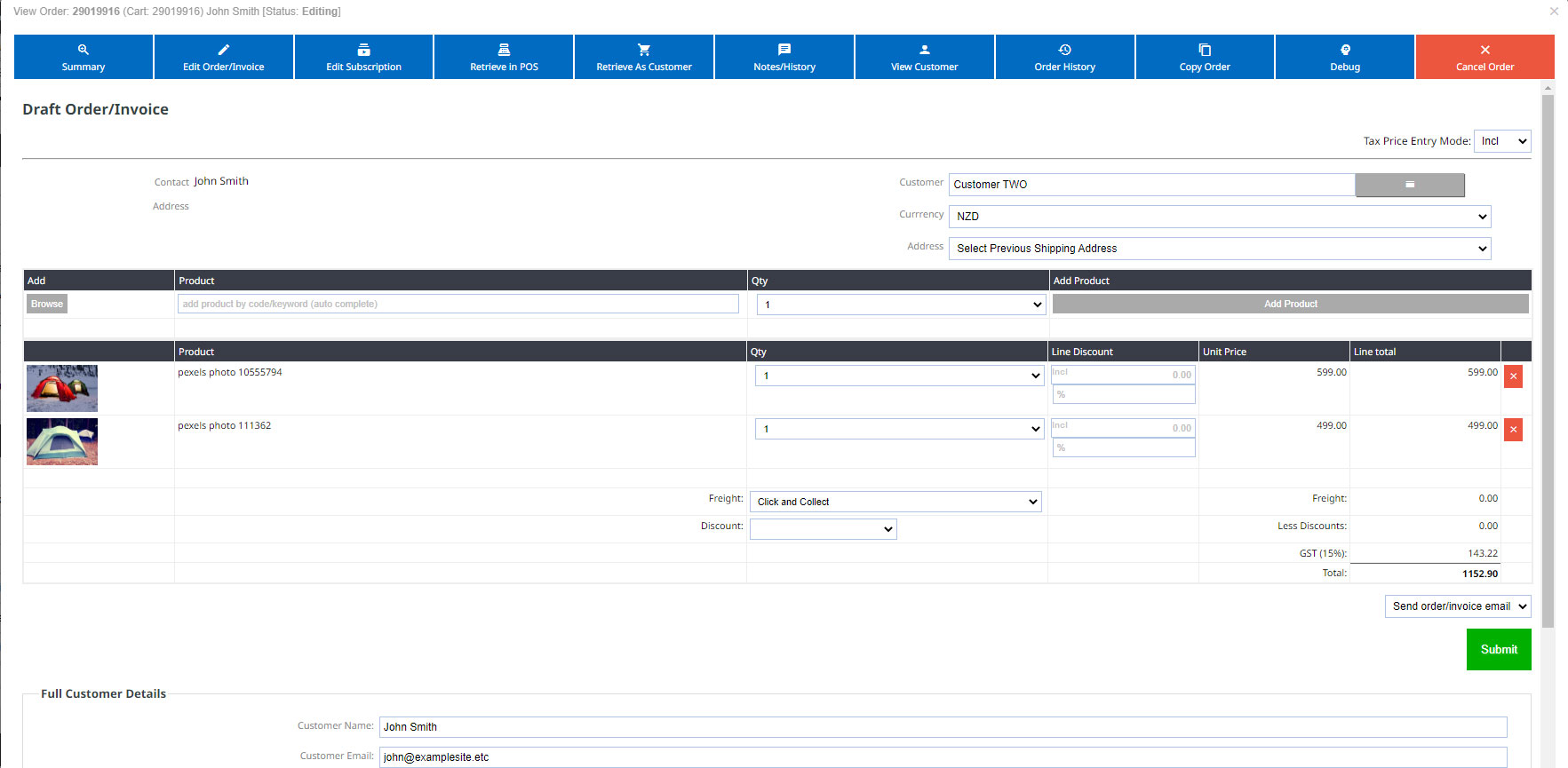
Above: You can make changes as needed to the subscription order, as requested by the customer.
Do not SUBMIT the order as this will trigger the order to be sent. Changes will be saved automatically.
You can change the next subscription date and frequency via the blue EDIT SUBSCRIPTION button.
You can cancel the order via the CANCEL ORDER button.
5. Viewing All Subscriptions
You can view all subscriptions under Orders on the left menu, then filter the status by subscriptions:

This will give you a view of all completed subscriptions, as well as the draft subscriptions sitting in line.

Image above of subscriptions order screen showing a completed first subscription order for Jenny, plus the draft order for her next subscription.
6. Restarting a Subscription via CMS
- Go to the last subscription order for the customer via either the members profile or your orders screen.
- Click on Subscription
- Use the Copy Order /Restart Subscription button to create the next draft order in line.

7. Forcing an Automatic Payment (Failed Orders)
Occasionally, a customers order may not go through - this might be that they had insufficient funds, or an expired card.
If the customer has updated their card, and the order has been submitted but not paid, you can push through the order.
- Open the submitted but unpaid order.
- Go to Payment tab
- If the customer has updated the card, scroll to the bottom of the screen, and select the new card under change payment method (saved card)
- Press change payment method.
- Scroll back up to top of payment tab in the order, then click the green Process Repeated Payment Transaction button. This will re-attempt and process the payment.